Add a Bot
What this page covers
- What this feature is for
- Where to find it in the dashboard
- The quickest way to use it safely
How to use this page
- Follow the steps top to bottom once.
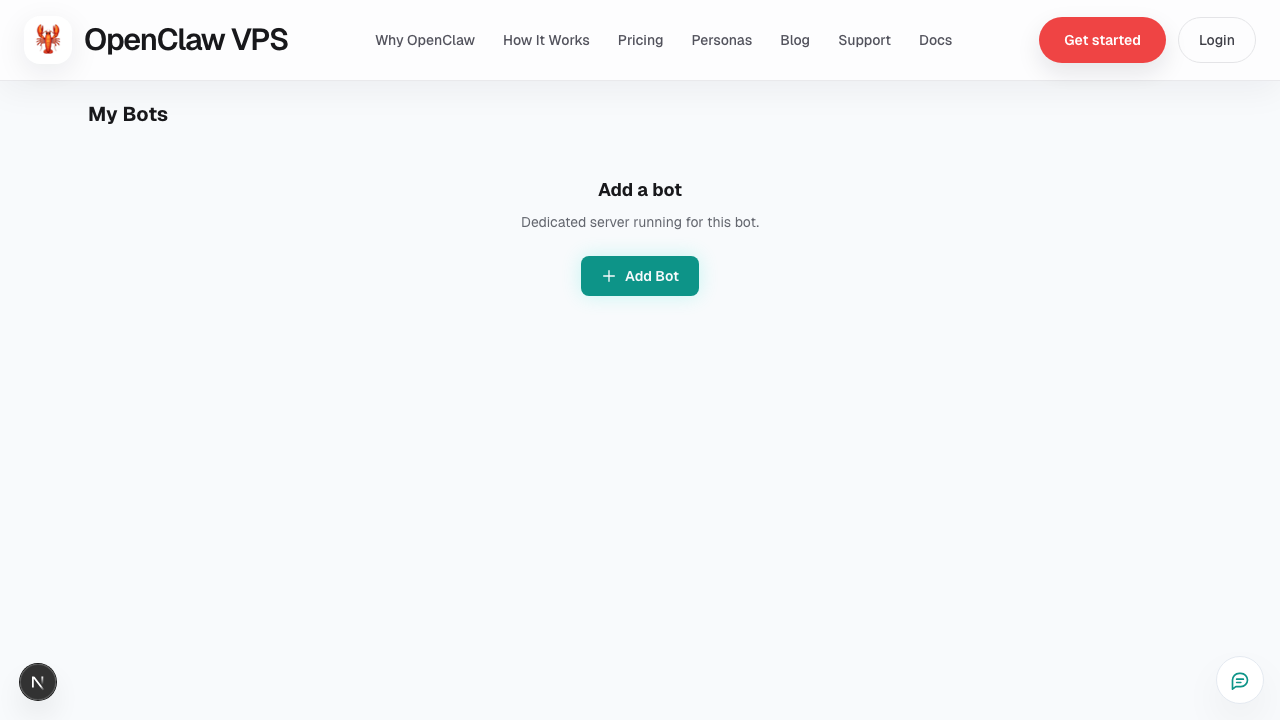
- Use the screenshot to match the right UI area.
- Use the Related links for deeper troubleshooting.
Use this flow any time you want to launch a new hosted bot.
Before you start
- You should be logged into the dashboard.
- Have your AI provider key ready (OpenAI, OpenRouter, or Gemini).
- Start with web chat first. Add Telegram later.
Create the bot
- Open Dashboard.
- Click Add Bot.
- Enter the bot name and basic details.
- Complete the onboarding wizard.
If this is your first bot, you may see the first-time setup modal. Follow it in order:
- Save what the bot should call you.
- Choose your AI provider path.
- Start in web chat.
After bot creation
Immediately verify:
- Bot appears in your dashboard list.
- Status is not stuck in provisioning.
- You can open chat from dashboard.
Recommended first test
Send 3 quick test prompts:
- Simple greeting
- One task-style instruction
- One follow-up question
If all 3 responses are correct and timely, your bot is ready for normal use.
Common issues
- Bot not appearing: refresh once, then check dashboard filters/status.
- Provisioning stuck: open Support and include bot name + timestamp.
- Chat unavailable: confirm AI key setup in bot configuration.
Screenshot