Bot Detail Tabs
What this page covers
- What this feature is for
- Where to find it in the dashboard
- The quickest way to use it safely
How to use this page
- Follow the steps top to bottom once.
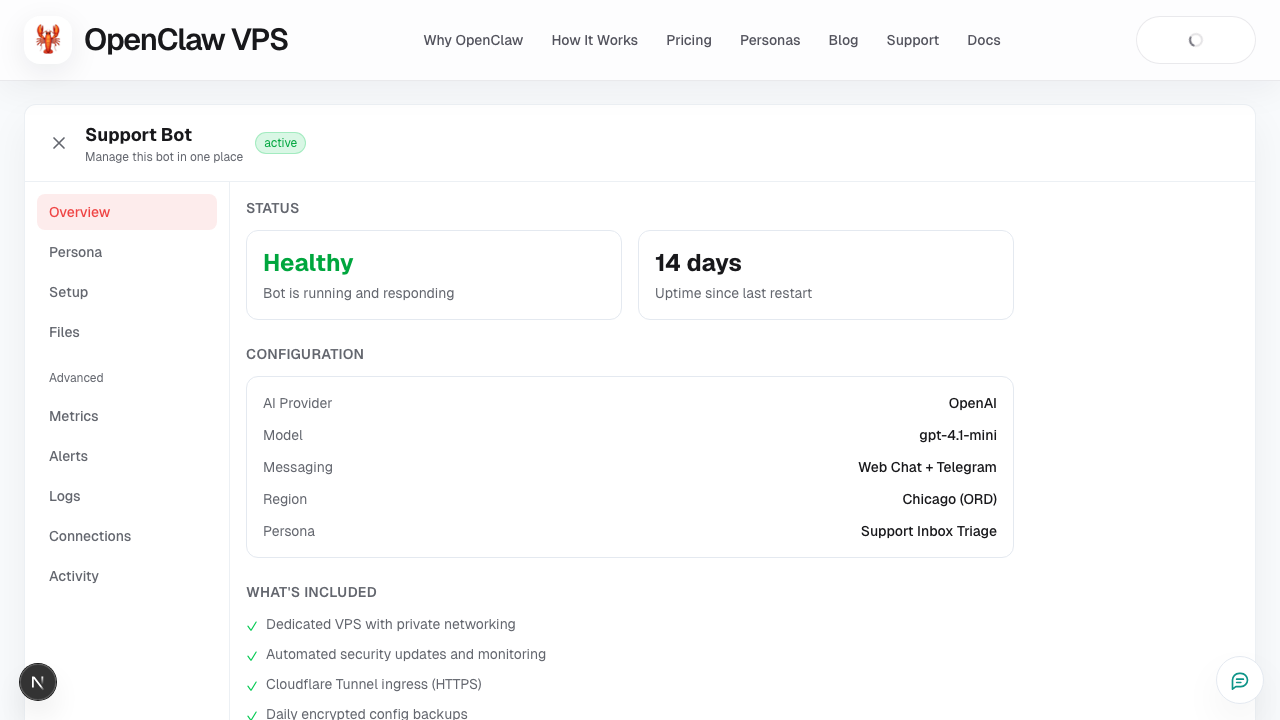
- Use the screenshot to match the right UI area.
- Use the Related links for deeper troubleshooting.
When you open a bot, each tab has a specific purpose. Use this as a fast reference.
Overview
Best for quick state checks.
Use it to see:
- readiness/health signals,
- what still needs setup,
- high-level next actions.
Chat (Open Chat)
Best for live usage and validation.
Use it to:
- test prompt quality,
- reproduce user-reported issues,
- verify behavior after config changes.
Setup / Configuration
Best for core bot configuration.
Use it to manage:
- AI provider key and model settings,
- channel setup,
- runtime options.
Persona
Best for role behavior.
Use it to:
- assign a ready-made assistant,
- switch persona by workflow,
- align tone/task style to use case.
Files
Best for bot-specific files.
Use it to:
- upload relevant files,
- keep data scoped to this bot,
- verify file availability in conversations.
Integrations
Best for channel/tool connectivity.
Use it to:
- connect supported apps,
- validate tokens/config,
- troubleshoot integration drift.
Billing (bot/account view)
Best for cost awareness.
Use it to:
- track active minutes,
- understand usage cost so far,
- monitor monthly trend.
Security posture (if shown)
Best for security confidence checks.
Use it to:
- review warnings,
- confirm baseline posture,
- identify issues requiring follow-up.
Screenshot
Per-tab guides
- Tab: Overview
- Tab: Chat
- Tab: Setup
- Tab: Persona
- Tab: Files
- Tab: Integrations
- Tab: Billing
- Tab: Security
Recommended tab order (new bot)
- Setup
- Chat
- Persona
- Integrations
- Files
- Billing
Recommended tab order (existing bot ops)
- Overview
- Chat
- Billing
- Setup (only when changing config)