Manage a Bot
What this page covers
- What this feature is for
- Where to find it in the dashboard
- The quickest way to use it safely
How to use this page
- Follow the steps top to bottom once.
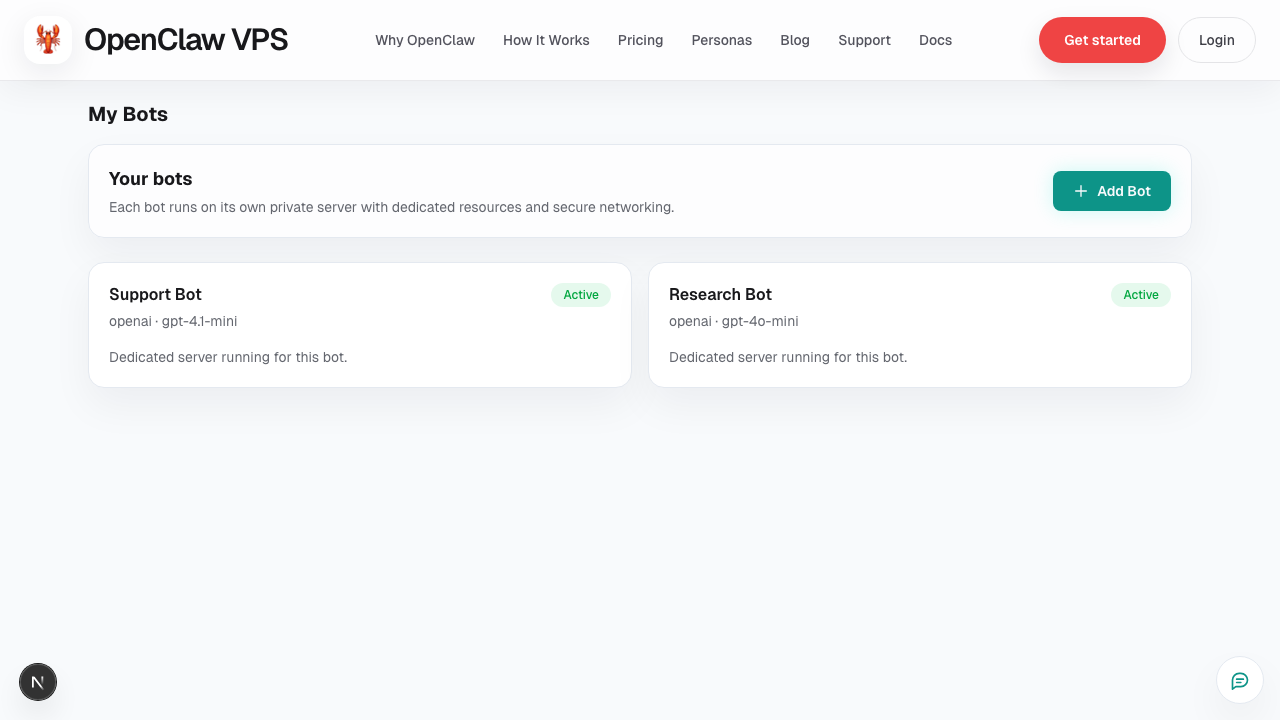
- Use the screenshot to match the right UI area.
- Use the Related links for deeper troubleshooting.
This page covers the day-to-day actions for keeping a hosted bot healthy.
Daily health check (1–2 minutes)
From the dashboard, check:
- Status (active / paused / action required)
- Open chat availability
- Usage minutes and usage cost so far
- Any action-required warnings
Core management actions
Open chat
Use for live testing, prompt tuning, and response-quality checks.
Settings / Config
Use for:
- AI provider key updates
- channel setup updates
- behavior/config updates
Billing view
Use to confirm:
- accrued usage trend
- monthly estimate
- per-bot usage visibility
Integrations
Use to connect or maintain channel/tool integrations.
Personas
Use to assign or switch ready-made assistants.
Pause / resume guidance
Pause bots when:
- the bot is not needed temporarily,
- you are debugging a config issue,
- you want to stop active usage growth.
Resume after config/test checks pass.
Incident workflow
If behavior degrades:
- Reproduce issue in dashboard chat.
- Check recent config/integration changes.
- Confirm provider key and model path.
- Open Support with bot name, timestamp, and exact symptoms.
Operational best practices
- Keep one bot as your stable baseline during changes.
- Make one significant config change at a time.
- Validate after each release/update.
Screenshot